
How to rename files with the folder name on Windows
A step-by-step walkthrough: from choosing a folder to checking the results and undoing a rename.
Step 1: choose the folder that contains your files
Drop a folder onto the window or press Browse. Pick the top folder: RenameFromFolders looks inside it and every folder below it, and renames the files where they are. You do not need to choose the folder that directly holds the files.
Example: choose “Employees” to rename everyone’s files at once, or just “0555 - John Wick” to rename only that person’s files.

Step 2: build the new file name from parts
Press + Add part and add the pieces in the order you want: the original file name, the parent folder (the folder holding the file), the grandparent (the folder above), the root folder you chose, created or modified date, a counter, or your own text.
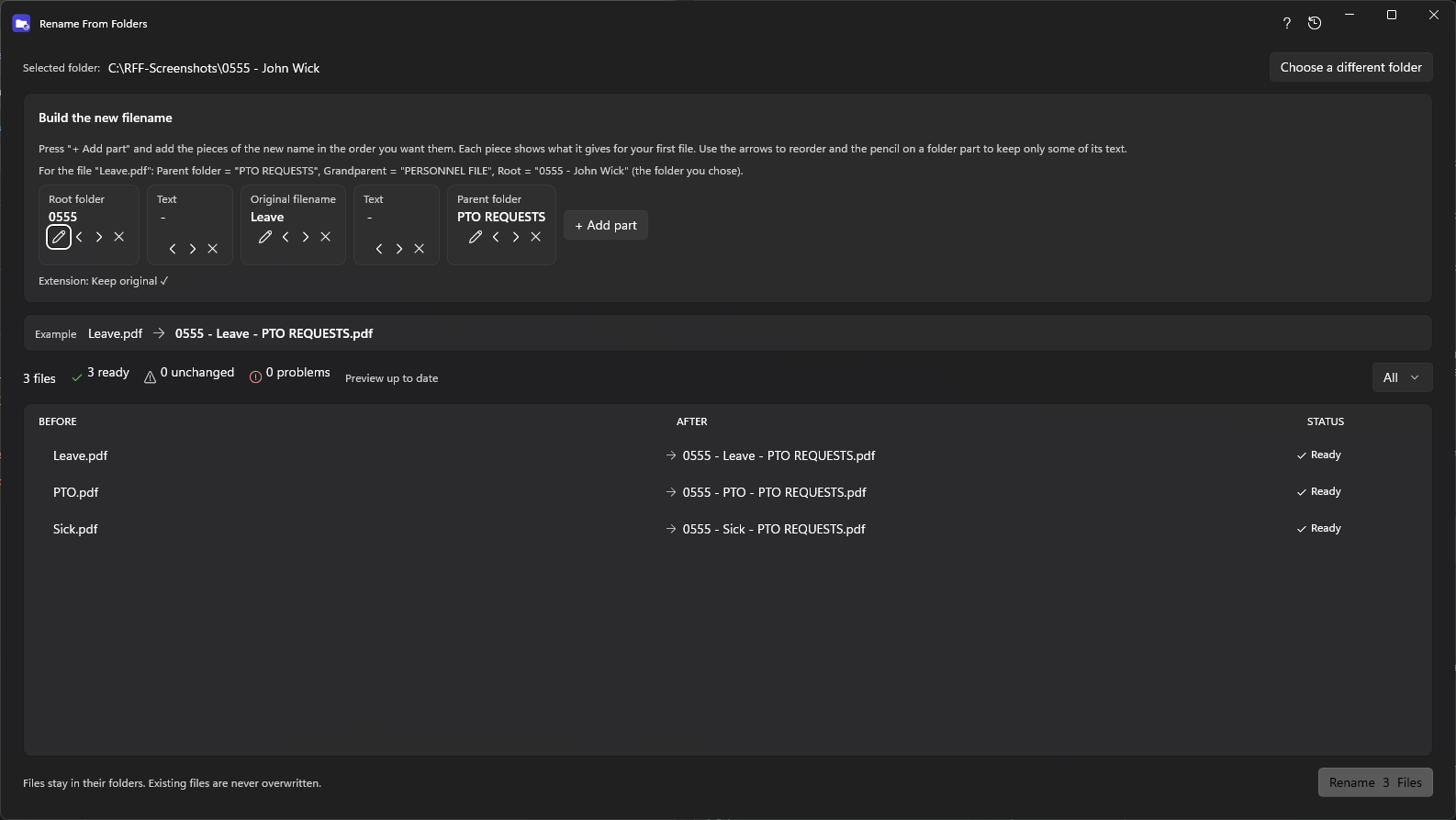
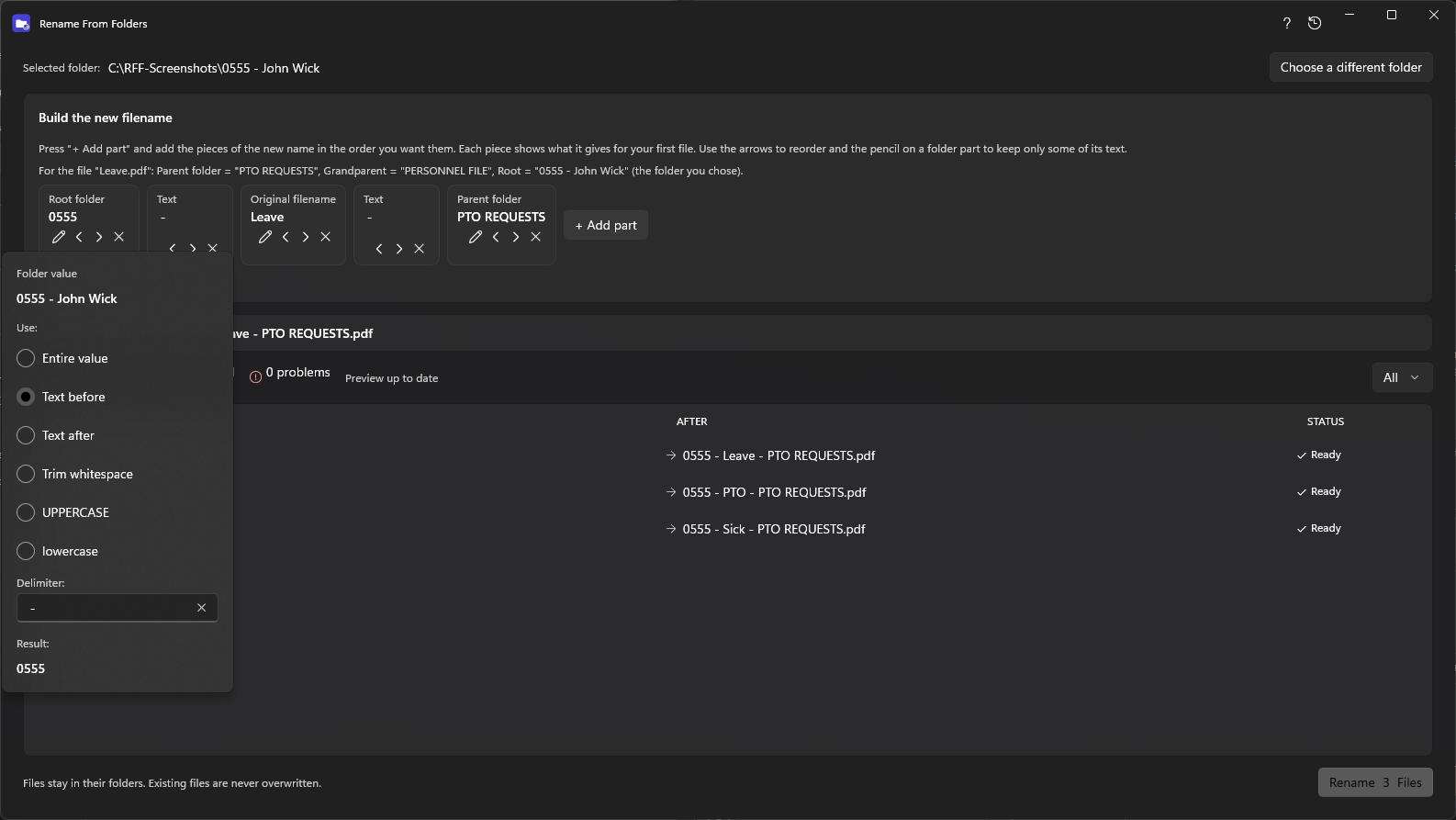
To use only part of a folder name, press the pencil on a folder part and pick Text before or Text after with a separator.
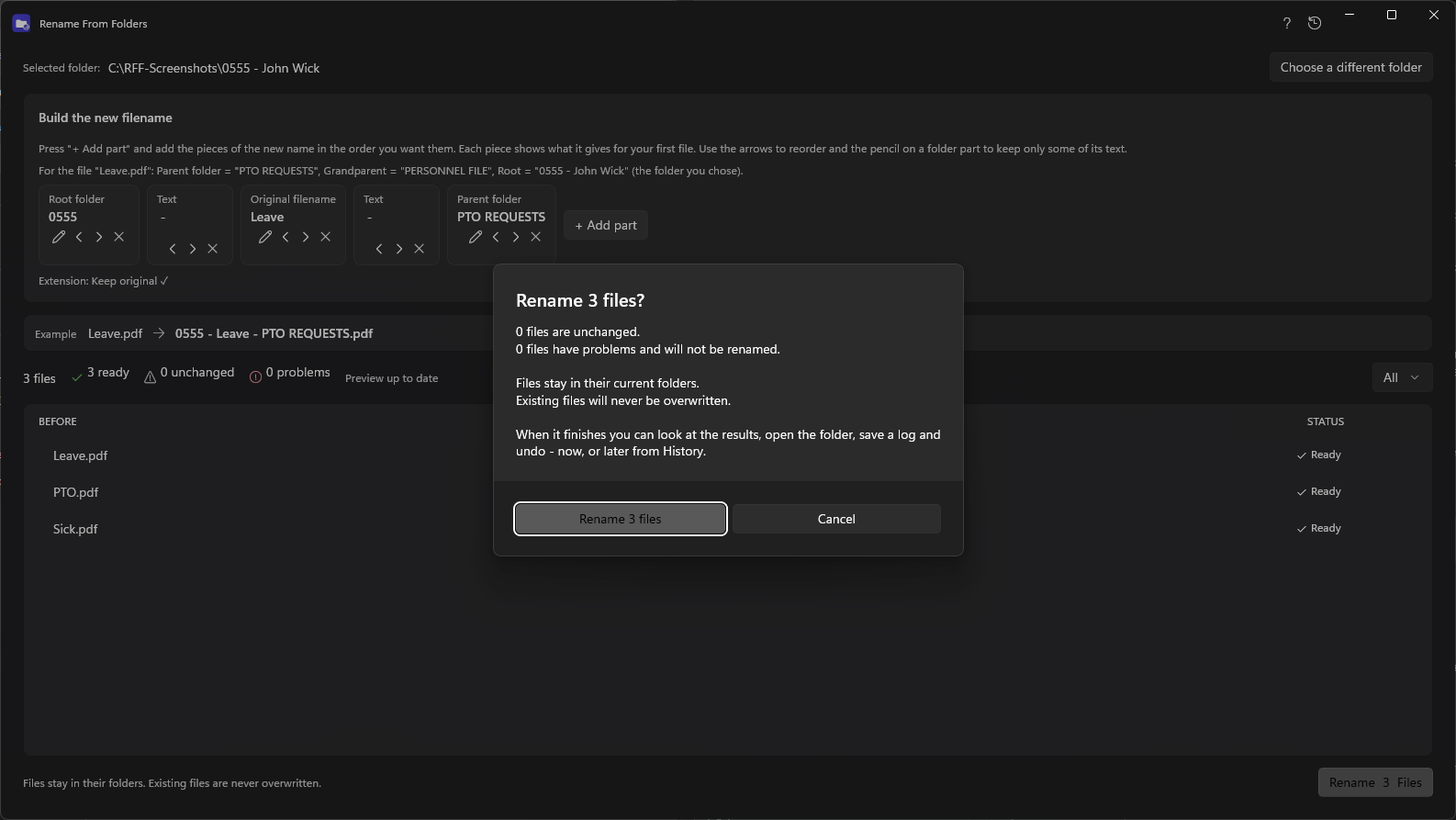
Step 3: review the preview and rename
Each file is marked Ready, Unchanged, Conflict or Invalid. Conflicts (the name is already taken, or two files would get the same name) and invalid Windows names are skipped. Press Rename, then confirm.
Step 4: check the results
The results screen stays open so you can look before you continue: view every file, open the folder in File Explorer, save a log as text or CSV, or undo.

Step 5: undo if you need to
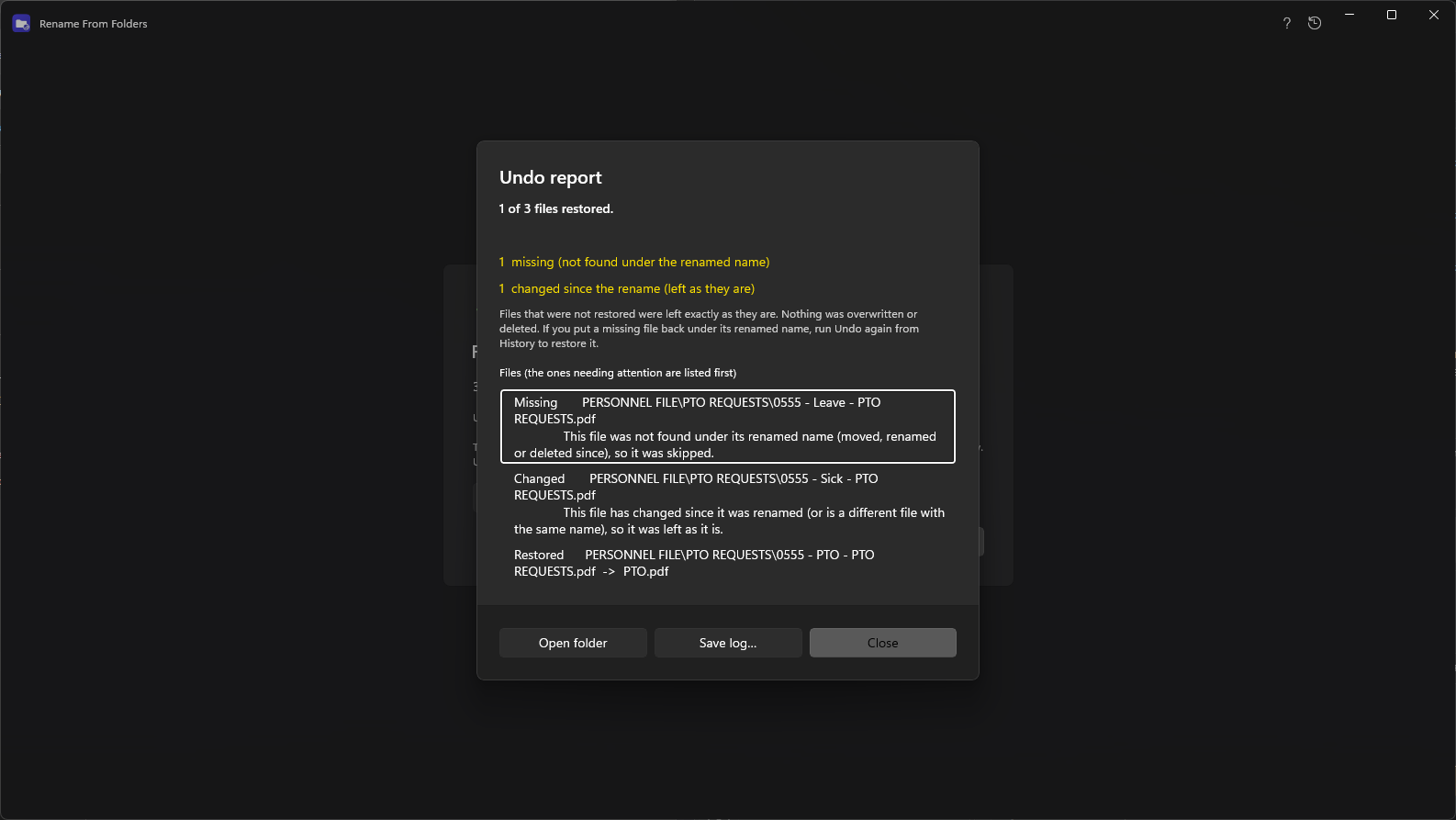
Undo works right away and later from History. Files that are missing, changed or blocked are skipped and reported; everything else is put back.
Rename files by folder name the easy way
Free to look at, safe to try: you see every change before anything is renamed, and you can undo it.