
Rename files to the parent folder name
Use the folder that holds each file as part of its new name, for a whole folder tree at once.
Add the parent folder name to every file in every subfolder, in one go. Preview each new file name first, never overwrite a file, and undo any bulk rename later.
File Explorer can only give a selection one shared name and a number. RenameFromFolders builds each new name from where the file lives: its folder, the folder above, dates, counters and your own text.
Use the folder that holds each file as part of its new name, for a whole folder tree at once.
Pick one top folder. Every file inside it and its subfolders is included, and stays where it is.
See before and after for each file. Conflicts and invalid names are shown and skipped, not forced.
Undo straight away or later from History. Each file is checked first; missing or changed files are reported, the rest restored.
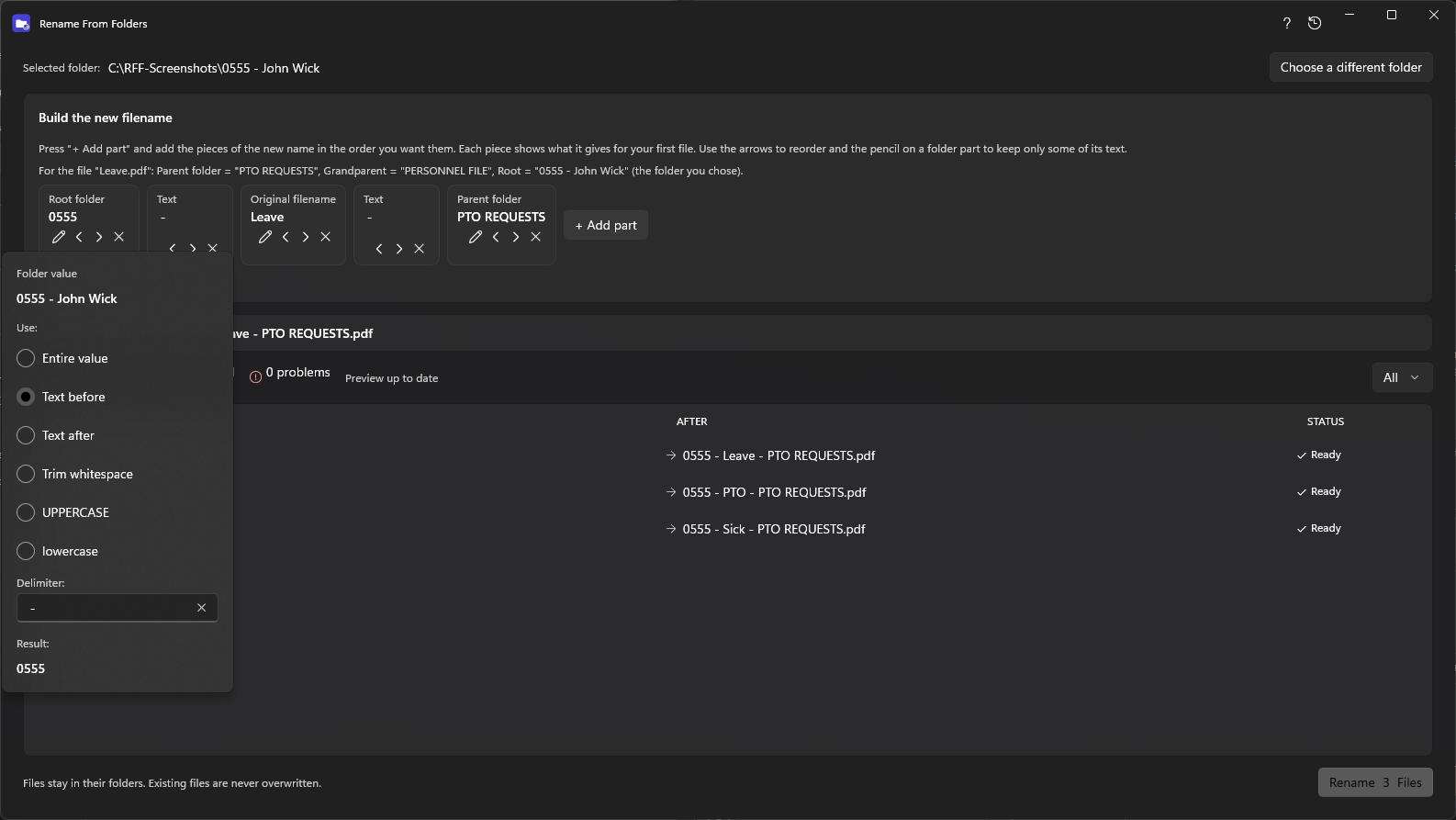
Take only the text before or after a separator, such as the number in “0555 - John Wick”.
No account, no network access, no tracking. Your file names never leave your PC.
The hard part is often not changing text. It is carrying the meaning already present in a folder tree into names you can search, sort and recognize later.
A file called report.pdf tells you very little after it leaves its project folder. Add the client, month or folder number while the context is still clear.
Seeing a list of changed names is not enough when a collision could overwrite work. Preview conflicts, confirm the exact plan and keep a per-file result.
A clean result includes recovery, history and undo. If a file moved or changed later, leave it alone and explain why instead of guessing.
Drop a folder on the window or press Browse. Subfolders are included automatically.
Add parts: parent folder, grandparent, original name, date, counter or text. The preview updates live.
Review the list, press Rename, then view results, open the folder or undo.
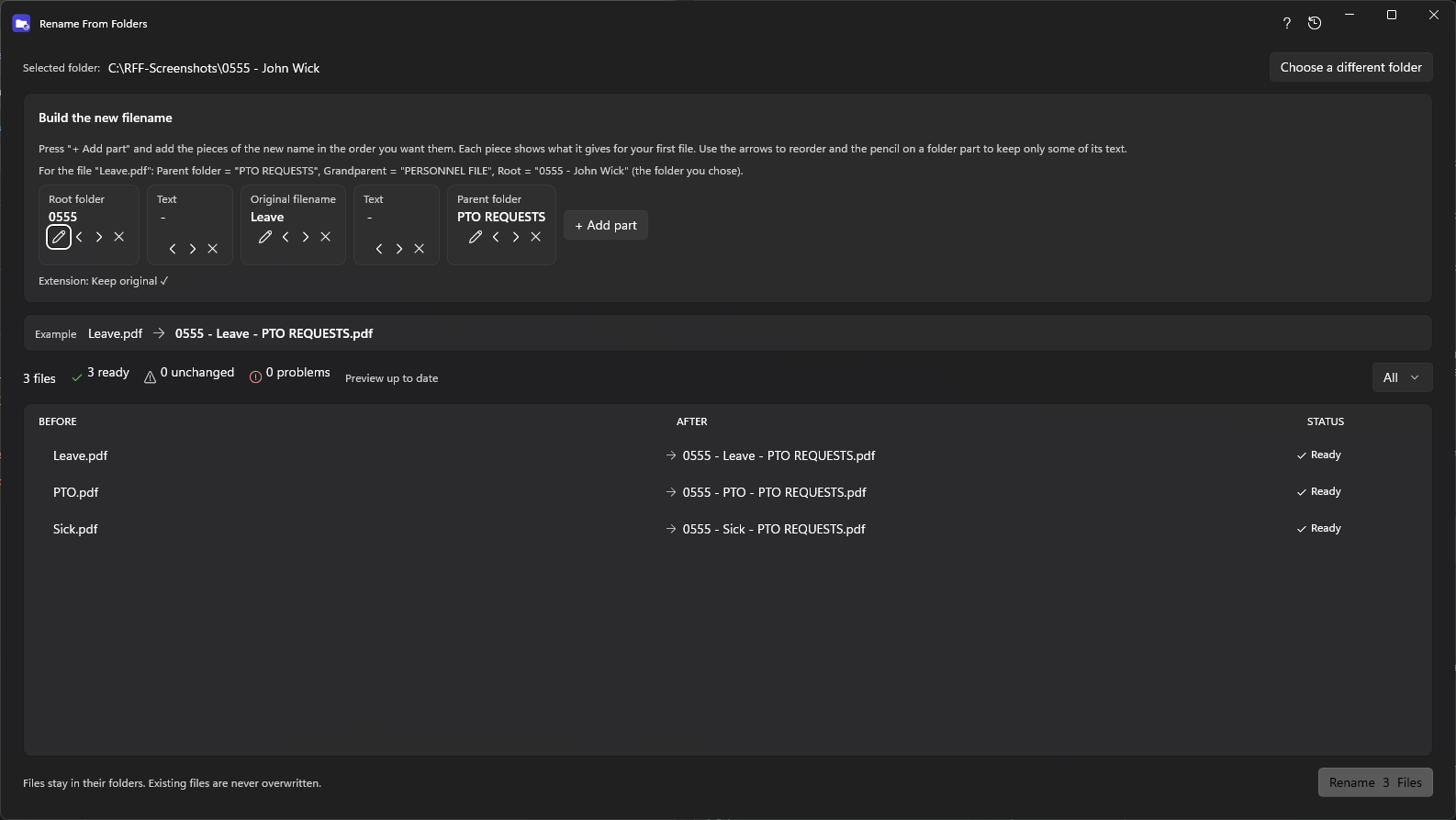
Employee files, client projects, photo events, invoices, scans and course material: anywhere the folder name already says what the file is.
Turn “PTO.pdf” inside “0555 - John Wick\PERSONNEL FILE\PTO REQUESTS” into “0555 - PTO - PTO REQUESTS.pdf”. Keep only the part of a folder name you need.
After renaming you can view every file, open the folder, save a log as text or CSV and undo. The undo report lists what was restored and what was missing or changed.
How undo and safety work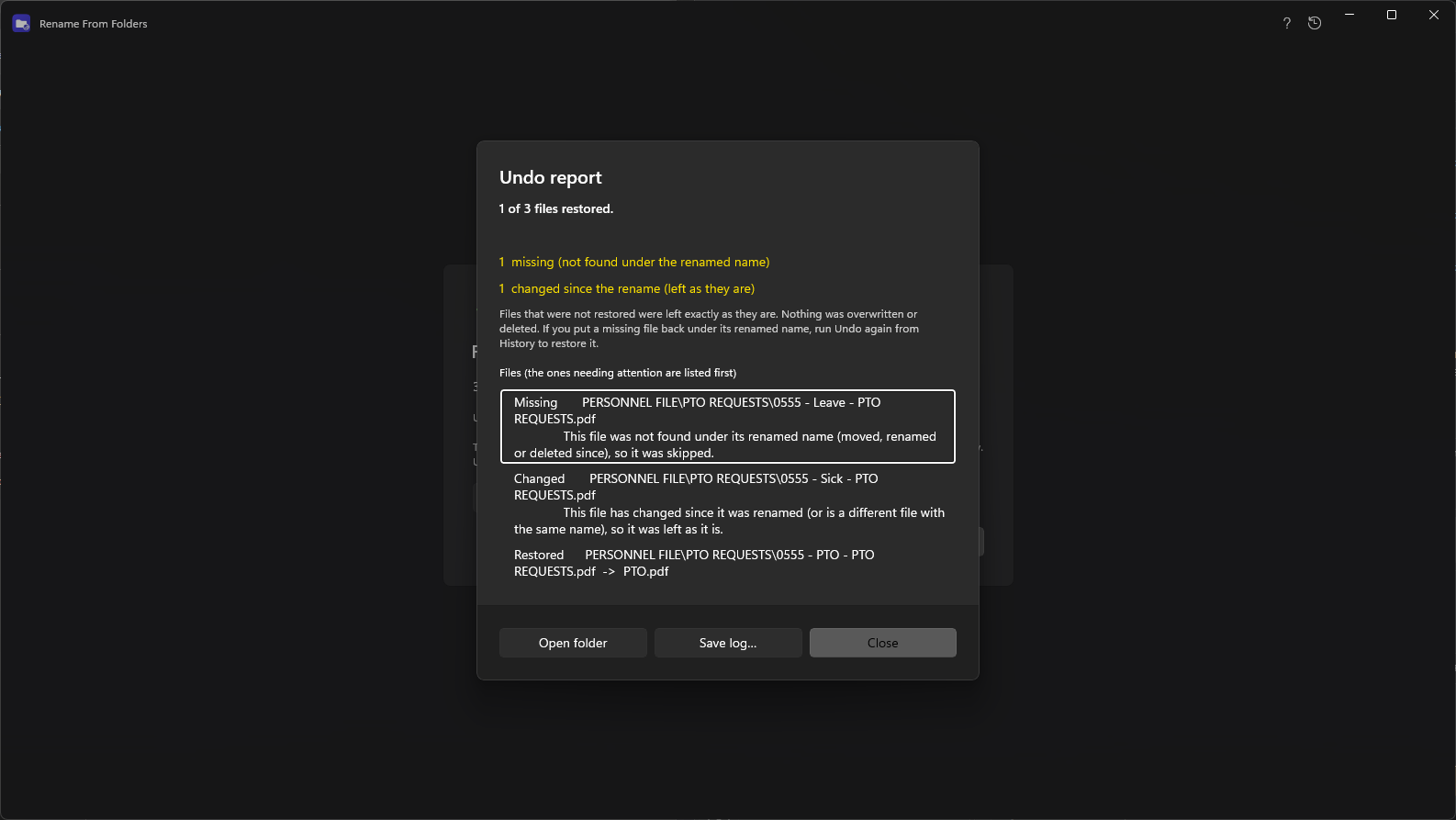
File Explorer cannot build names from folders. With RenameFromFolders you choose the folder, add a “Parent folder” part, check the preview and press Rename.
Yes. Undo works right after the rename and later from History, and each file is verified before it is put back.
No. Existing files are never overwritten; conflicts are shown in the preview and skipped.
Free to look at, safe to try: you see every change before anything is renamed, and you can undo it.