 ClerkBrain
An AI file organizer that reads before it renames
Most Windows "auto-organize" tools sort by file extension. ClerkBrain reads what each document actually says — supplier, date, invoice number, total — and suggests a name and folder that reflect that. You approve every change before anything moves.
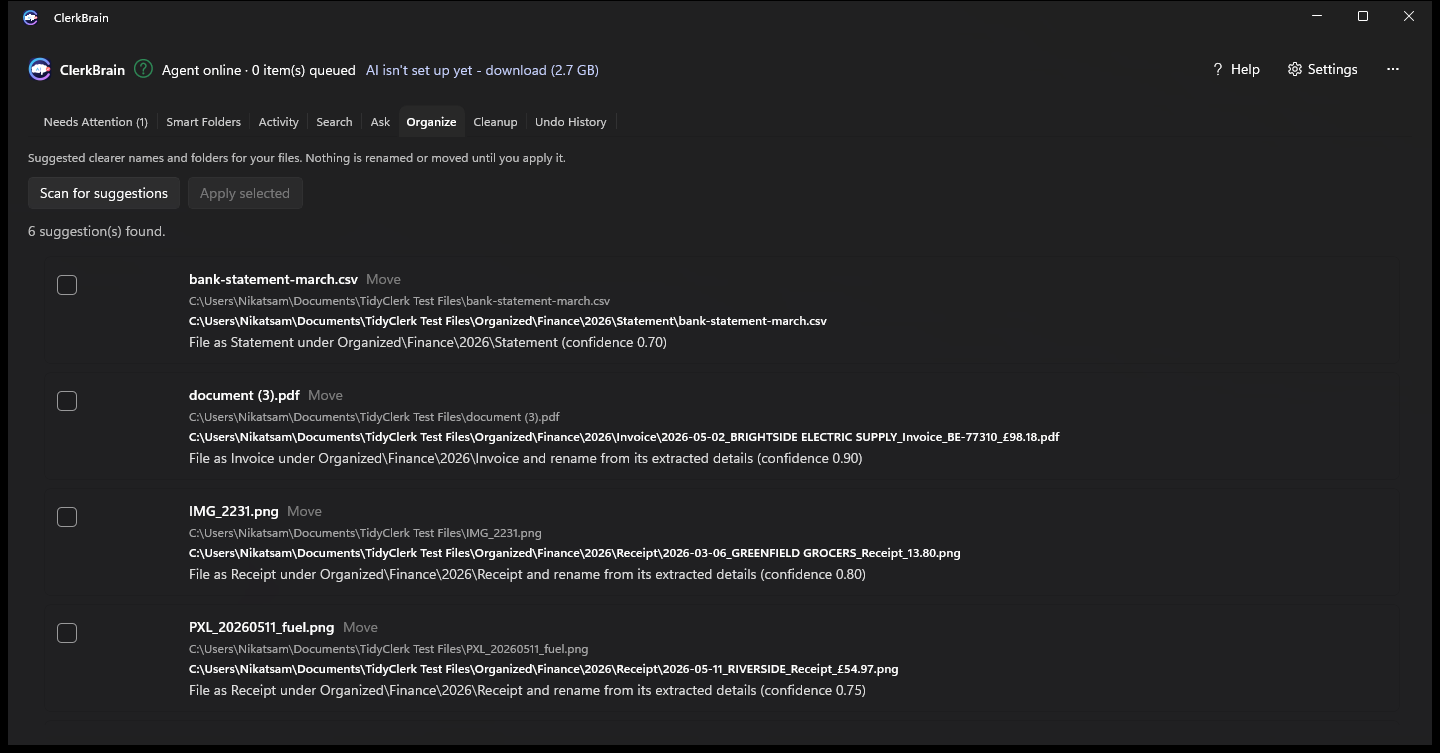
From scan0042.pdf to something you'd actually recognize
A folder full of scans, downloads and phone photos becomes a folder of files you can read at a
glance: 2026-03-12_Acme Plumbing_Invoice_INV-2041_£312.00.pdf, filed under
Organized\Finance\2026\Invoice\. ClerkBrain works out the pattern from the document's
own content — not from a fixed template you have to configure.
Review, then apply
Every suggestion is shown as current name → suggested name before anything happens. Tick the ones you want, apply, done. Nothing runs unattended unless you explicitly switch on automatic filing.
Always reversible
Every applied rename or move is written to Undo History. Changed your mind? Reverse one file or a whole batch, any time.
Duplicates handled first
ClerkBrain's Cleanup pass finds exact duplicates before Organize runs, so suggestions don't collide and you're not filing the same receipt twice.
Common questions
How do I automatically rename downloaded files on Windows?
ClerkBrain reads the content of each file in your Downloads folder — the supplier, date, invoice number or total it contains — and suggests a clear, consistent name. You review the suggestions and apply the ones you want; nothing renames automatically unless you turn that option on yourself.
Can I undo a file rename or move?
Yes. Every rename or move ClerkBrain applies is logged in Undo History, and can be reversed from there at any time, individually or in bulk.
Does ClerkBrain organize files by file type or by content?
By content. A generic file-type sorter puts every .pdf in one folder regardless of
what it is. ClerkBrain reads the document first, so an invoice, a bank statement and a travel
receipt — all PDFs — end up named and filed differently, based on what they actually are.
See it organize your own Downloads folder
Free on the Microsoft Store.
⊞ Coming soon to the Microsoft Store