 ClerkBrain
Never miss a bill — or wonder where the money went
ClerkBrain works out which bills and invoices are due, totals your spending by supplier and month, and lets you fix a wrong reading by hand — all from documents already sitting in your Downloads folder.
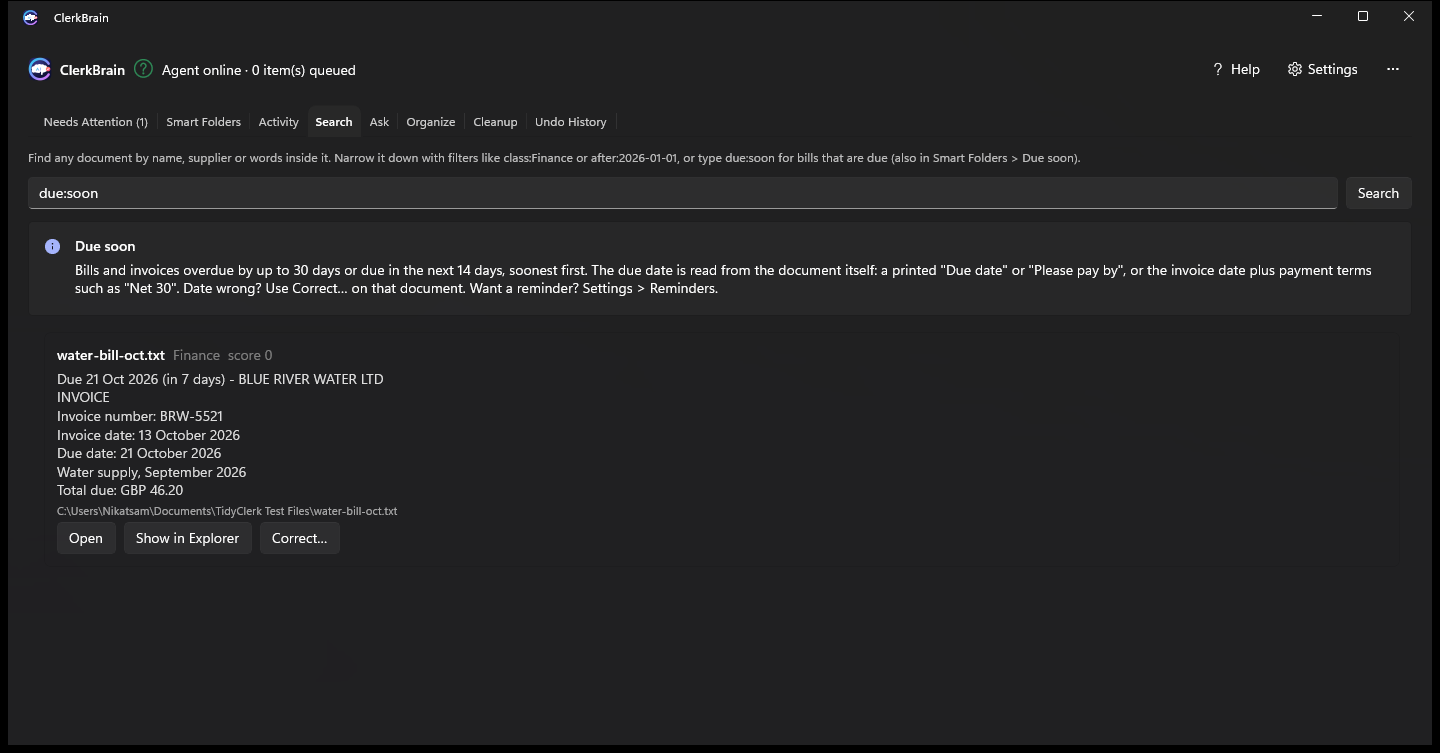
A due-bills list that never guesses
Search due:soon or open Smart Folders > Due soon to see what's overdue by up to 30 days or
due in the next 14, soonest first. The due date comes only from the document itself — a printed
"Due date" or "Please pay by", or the invoice date plus payment terms like "Net 30". A bill that
doesn't state one simply won't appear, rather than showing a guessed date.
- Optional reminder: a Windows notification, at most once a day, only for what's actually due
- Off by default — turn it on in Settings > Reminders
- Missed one? Add its due date by hand in seconds (see below)
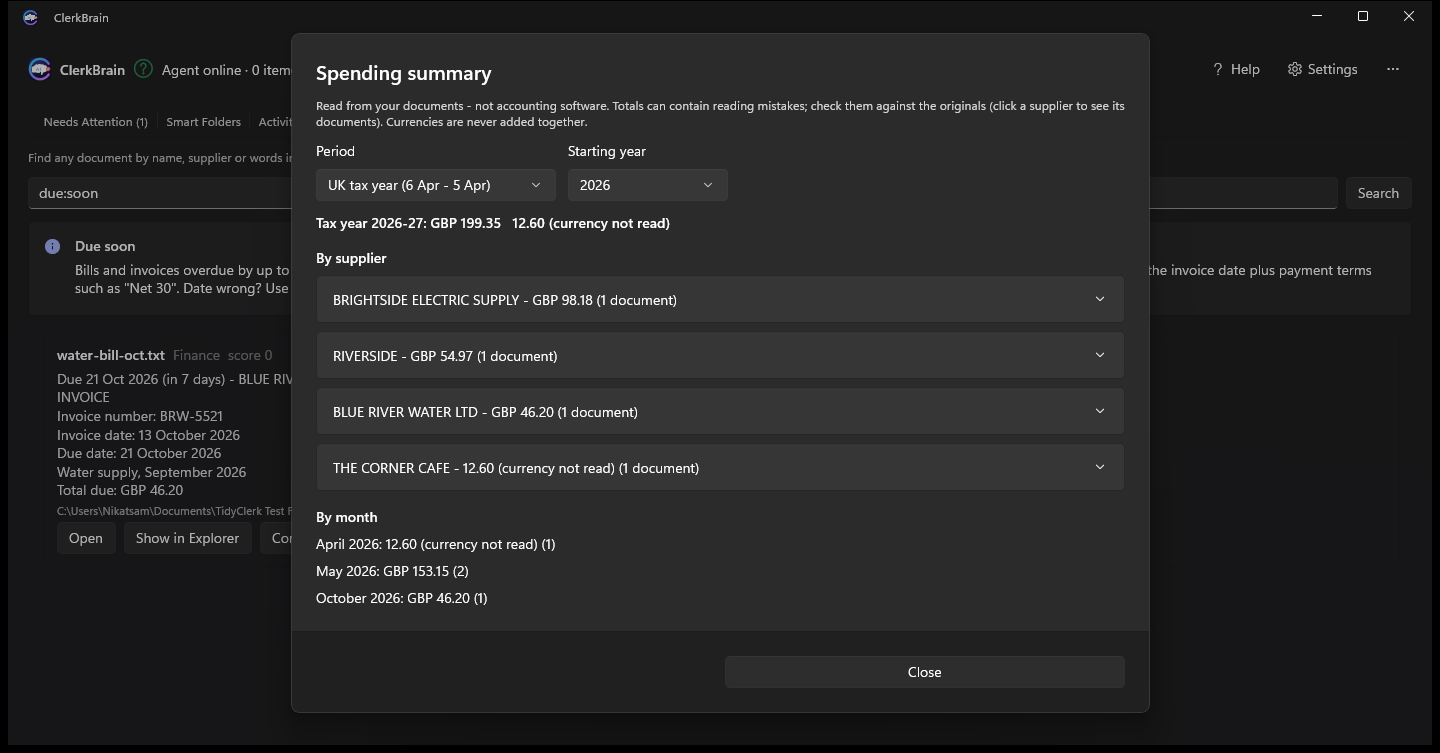
Where did the money go? By supplier, by month.
The ... menu's Spending summary totals every invoice and receipt for a UK tax year or
calendar year, broken down by supplier and by month. Currencies are never mixed together. Click any
supplier to see the real documents behind its total.
- Built from the same records as the accountant export, so the two always agree
- Documents with no readable total are reported, never silently dropped or guessed
- Clearly labelled: this is a summary of what your documents say, not accounting software
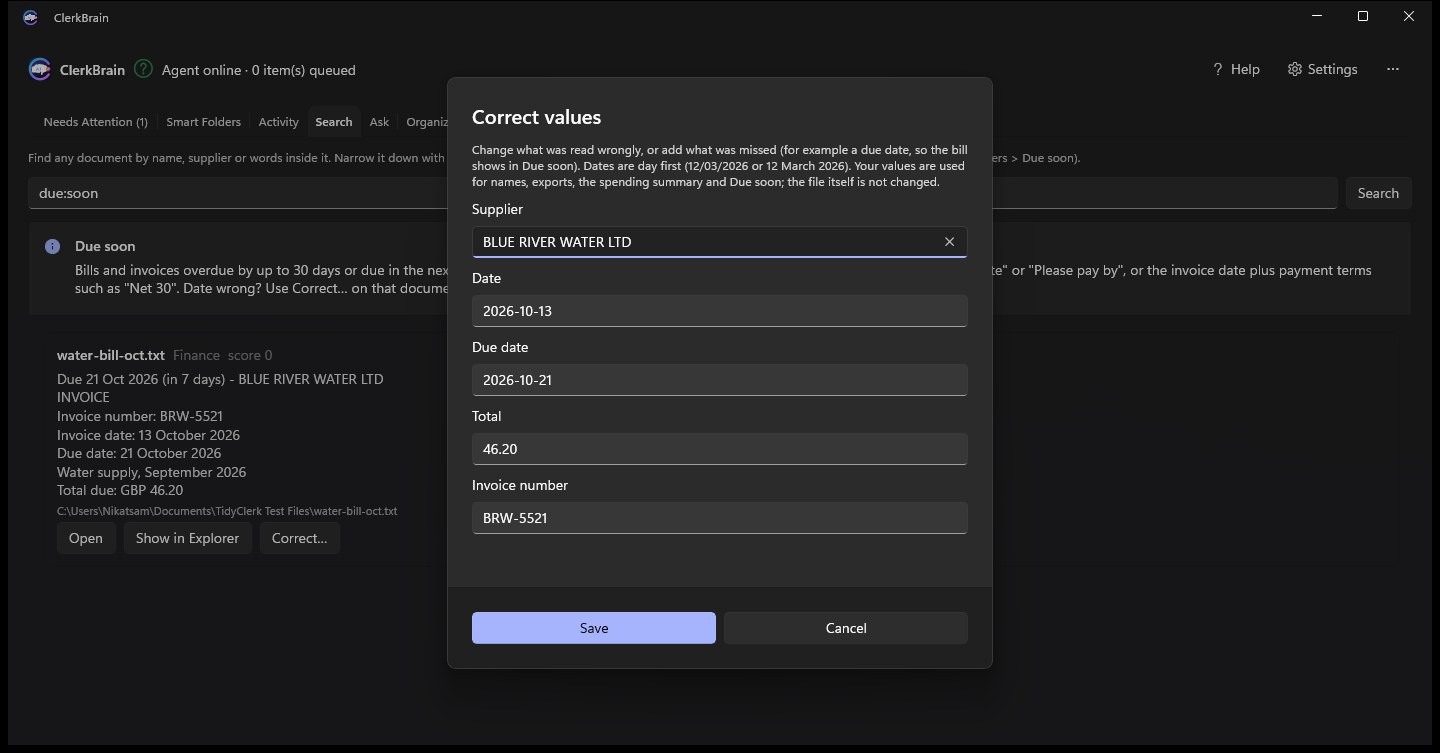
Wrong reading? Fix it in one dialog.
Every search result and Ask answer has a Correct… button. Type in the right supplier, date, due date, total or invoice number, and ClerkBrain checks it before saving — a total has to be a real amount, a date a real date (day first). Your correction is then used everywhere: file names, exports, the spending summary, Due soon.
- Survives the document being read again — it won't silently revert
- Always undoable, one field at a time
- The file on disk is never touched — only ClerkBrain's own catalogue
Xero & QuickBooks ready
The accountant export can add a Xero bills import file and a QuickBooks Online transactions file alongside the usual summary spreadsheet — built from the same figures, so nothing is retyped.
Still entirely on your PC
Due dates, the spending summary and corrections are all worked out from documents already on your PC. Nothing new is uploaded; the only network call ClerkBrain ever makes is the optional AI model download.
Backed by a safer catalogue
1.0.1 also checks ClerkBrain's own index at startup and keeps weekly backups, so a damaged catalogue is recovered automatically instead of losing your organised files and corrections.
Common questions
Can ClerkBrain tell me which bills are due or overdue?
Yes. Search due:soon or open Smart Folders > Due soon to see bills and invoices overdue
by up to 30 days or due in the next 14, soonest first. The due date comes only from what the document
says — a printed "Due date" or "Please pay by", or the invoice date plus payment terms such as
"Net 30" — so ClerkBrain never guesses one.
Can I get a reminder for bills that are due?
Yes, as an optional Windows notification you turn on in Settings > Reminders. It checks at most once a day while ClerkBrain is open and only mentions bills that are overdue or due within 3 days, so it never nags.
Does ClerkBrain show how much I've spent, by supplier or by month?
Yes, in the spending summary (... menu). It totals your invoices and receipts by supplier
and by month for a tax year or calendar year, keeps currencies separate rather than adding them
together, and every supplier expands to the real documents behind the number.
What if ClerkBrain reads a total, date or due date wrongly?
Use Correct… on that document to type in the right value. ClerkBrain checks it (a total must be a real amount, a date a real date), uses it everywhere — names, exports, the spending summary, Due soon — and keeps it even if the document is read again. It can always be undone, and the file itself is never changed.